It is hard to believe that NetBeans is 10 years old. It seems like it was just yesterday that I switched from Sun Forte, Sun Studio Enterprise, and Sun Studio Creator to NetBeans. Don't get me wrong some of these IDEs were more polished at the time, and based on NetBeans in some cases. NetBeans just kept growing and the other IDEs fell by the wayside.
Why have multiple code bases? Sun made a good decision to focus on the community tool instead of wasting time on multiple code bases. It took time to get to this point though, but I think we can all agree it was a good decision.
I am participating in the NetBeans Decathalon. They wanted to know how I use NetBeans. Well as you can see from my blog... I use it on everything! On a serious note, I use NetBeans to develop enterprise class applications for my employer. It is a complete package from head to toe to accomplish this task. Most of my applications are JSF based interacting with JMS, EJBs, and Web Services. All of this on top of Project GlassFish.
My biggest project with NetBeans was using Visual JSF a.k.a Visual Web Pack (VWP) (Project Woodstock) to develop a timesheet tracking system which linked to our field force automation system and SAP.
This is also my favorite NetBeans story...
I decided to use VWP in NetBeans 5.0 to start the development. As more features were added to VWP, I kept upgrading. Eventually I was using 5.5 nightly builds along with Glassfish nightly builds. This became our production environment. NetBeans 6.0 nightly builds and GlassFish V1 Build 48. I just took Glassfish B48 out of production last week and replaced it with V2 UR2. This is a testament to how solid Glassfish is, and how useful NetBeans was in accomplishing my task.
I have been tasked to update this application by years end. I am waiting for NetBeans 6.5 to be released before I start. I am also waiting for some definitive word on Project Woodstock.
Happy Birthday NetBeans...
Monday, October 20, 2008


Saturday, September 27, 2008
OpenDS LDAP and GlassFish Configuration
Introduction
A question was posted to our JUG mailing list on how to lock a directory which contained an Adobe™ PDF file. In this example I want to cover a couple of really cool technologies, and how to implement them.
OpenDS is a project hosted on Java.net. It is an open source directory server which is based on the Sun™ SunOne™ Directory server and its predecessors (Netscape™ iPlanet™). It has a binary, or a Java™ Webstart deployment mechanism. It has a simple quick start setup including SSL based LDAP, and directory replication.
This is a simple to install, easy to use and configure, no-nosense LDAP server. It is a great server for prototyping.
Project Glassfish is an open source Java EE application server. It is simple to install and configure, and easy to use. The chances are pretty good that if you are reading this blog, you are familiar with its enormous benefits.
Case
The developer has a pdf file that is located inside a web project on the web server. The file can be bookmarked by users, but the developer wants to make sure that the user authenticates with the server before the file is displayed.
Software and Files Required
Setup
1. Download and install Glassfish
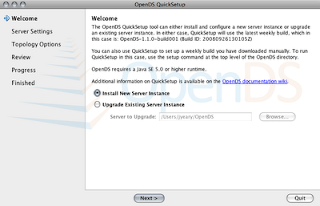
3. Create a new instance.
4. Accept the default installation directory. Set the password for the cn=Directory Manager to test.
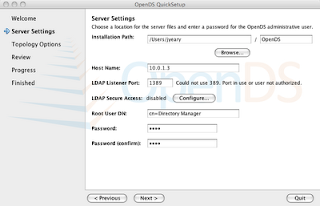
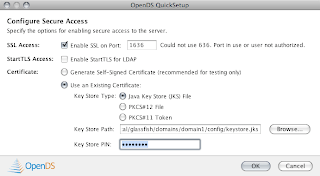
5. Press the Configure button to configure the secure LDAP connection.
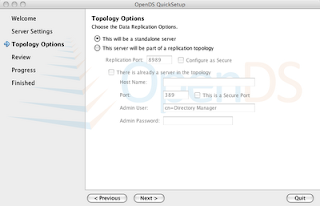
6. Select the default for topology options and continue to Directory Data Next.
7. Review the selections and Finish.
8. Authenticate with the server using cn=Directory Manager and password "test".
Congrats. You now have a running LDAP server.
If you want to explore the contents of the directory use a tool like JXplorer, or Apache Directory Studio.
Now we need to configure our LDAP Security Realm in Glassfish. You may have multiple realms in Glassfish to accommodate application requirements.
1. Start Glassfish and login on http://localhost:4848. The default user is admin and password is adminadmin.
2. Go to Configuration --> Security --> Realms. Create a new Realm
4. Save and you are done.
You have now configured Glassfish to use OpenDS.
Once you successfully authenticate, you will see a list of popular software that runs on Glassfish.
A question was posted to our JUG mailing list on how to lock a directory which contained an Adobe™ PDF file. In this example I want to cover a couple of really cool technologies, and how to implement them.
OpenDS is a project hosted on Java.net. It is an open source directory server which is based on the Sun™ SunOne™ Directory server and its predecessors (Netscape™ iPlanet™). It has a binary, or a Java™ Webstart deployment mechanism. It has a simple quick start setup including SSL based LDAP, and directory replication.
This is a simple to install, easy to use and configure, no-nosense LDAP server. It is a great server for prototyping.
Project Glassfish is an open source Java EE application server. It is simple to install and configure, and easy to use. The chances are pretty good that if you are reading this blog, you are familiar with its enormous benefits.
Case
The developer has a pdf file that is located inside a web project on the web server. The file can be bookmarked by users, but the developer wants to make sure that the user authenticates with the server before the file is displayed.
Software and Files Required
- OpenDS 1.x
- GlassFish Version 2 Update Release 2
- example.ldif.zip
- GlassfishSecurityExampleLDAP.zip
Setup
1. Download and install Glassfish
Note: When Glassfish is installed it creates its own self-signed SSL certificates. We will use this certificate later.2. Start the installation of OpenDS

3. Create a new instance.
4. Accept the default installation directory. Set the password for the cn=Directory Manager to test.

5. Press the Configure button to configure the secure LDAP connection.
- Set the Key Store Type to Java Key Store (JKS).
- Set the key store path to point to the keystore.jks file located in the GLASSFISH_HOME/domains/domain1/config directory.
- Set the Key Store Pin to changeit.
Note: "changeit" is the default password to the keystore. You will need to "change it" for a production system.

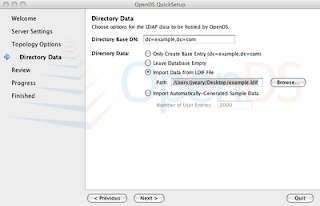
6. Select the default for topology options and continue to Directory Data Next.

- Directory Data should have the default Directory Base DN: dc=example,dc=com
- Select Import Data from LDIF file and use this example.ldif file. Next.
Note: I have created a pre-generated list of users previously. In this example, I have created a group and assigned it members. So to simplify the example, please use the example.ldif file.

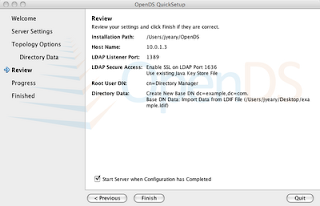
7. Review the selections and Finish.

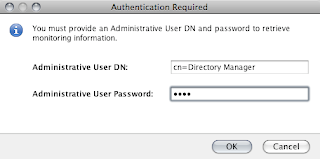
8. Authenticate with the server using cn=Directory Manager and password "test".


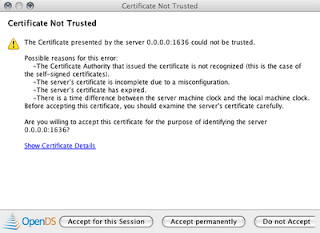
Note: A message will pop-up asking if you want to accept the certificate for the LDAP server. Use the this session only option.

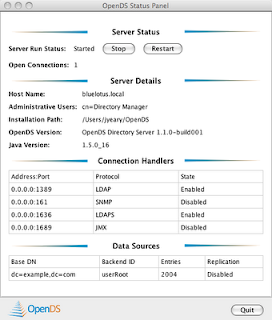
Congrats. You now have a running LDAP server.
If you want to explore the contents of the directory use a tool like JXplorer, or Apache Directory Studio.
Now we need to configure our LDAP Security Realm in Glassfish. You may have multiple realms in Glassfish to accommodate application requirements.
1. Start Glassfish and login on http://localhost:4848. The default user is admin and password is adminadmin.
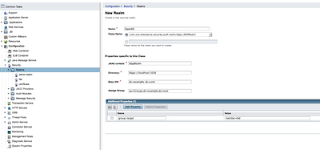
2. Go to Configuration --> Security --> Realms. Create a new Realm
- Name: OpenDS
- Class: com.sun.enterprise.security.auth.realm.LDAPRealm
- JAAS context: ldapRealm
- Directory: ldaps://localhost:1636
- Base DN: dc=example, dc=com
- Assign Group: ou=Groups,dc=example,dc=com
- group-search-filter: member=%d

Note: The group-search-filter defines the attribute to look at when determining members of the groups. It may be member, memberurl, etc. depending on how you define your groups. In the example.ldif file, I have define the group as a groupOfNames which contains member [0...] attributes. The %d format expands to match the Relative Distinguished Name (RDN).
4. Save and you are done.
You have now configured Glassfish to use OpenDS.
Note: Since we configured it to use secure LDAP, remember to configure your server to use SSL to authenticate users. Otherwise the secure LDAP portion is a waste if the users are transmitting their usernames and passwords in cleartext over the networkI have created a sample Netbeans project which takes advantage of the new LDAP authentication. The project creates a page with a link to a PDF file located in a secured directory. The directory requires the user to authenticate using basic authentication implemented in the browser. If you fail to authenticate, it will produce a 403 error. The project is located here.
Once you successfully authenticate, you will see a list of popular software that runs on Glassfish.
Tuesday, September 02, 2008
Netbeans License Templates
I have created a couple of license templates for use in Netbeans.
1. You will need to go to Tools -->Templates -->User Configuration Properties -->User.properties and Open in Editor
2. Update the user property to your name. Add another line called company and provide the company name.
3. Next download the licenses you are interested in from below.
4. Go to Tools -->Templates -->Licenses and click on the Add button.
5. Select the license file you downloaded.
6. To use the license, edit the project.properties file and add project.license= to match the license, i.e., bsd, mit, etc.
7. The license name is based on the format license-XXXX.txt
1. You will need to go to Tools -->Templates -->User Configuration Properties -->User.properties and Open in Editor
2. Update the user property to your name. Add another line called company and provide the company name.
#
# Here, or in other properties files in this directory, you can define
# various properties that you want to make available to the template
# processor while creating various templates.
#

# uncomment the next line and specify your user name to be used
# in new templates
user=John Yeary
company=Blue Lotus Software, LLC
3. Next download the licenses you are interested in from below.
4. Go to Tools -->Templates -->Licenses and click on the Add button.
5. Select the license file you downloaded.
6. To use the license, edit the project.properties file and add project.license= to match the license, i.e., bsd, mit, etc.
7. The license name is based on the format license-XXXX.txt
Subscribe to:
Posts
(
Atom
)
